Friday, May 29, 2009
Wednesday, May 20, 2009
Examples of the previous post (coffee shop)
If you are not quite sure if downloading actions is worth the time, check out my before and afters. One thing I love about the coffee shop actions is that they are all adjustable to taste. So although one of my images may not be exactly your style, you can adjust it to your own individual style. I really like the look of URBAN photography (bright colors, or muted colors, increased contrast, and lighting)
------------original--------------------- with Barista action applied

------------original--------------------- with Barista action applied

original ------------------------------------see detail below---------- rasberrry tea action------
with sweet bakery glazes applied in the above middle picture (you can choose from 5 types of glazes, this one is strawberry. The "glaze" is what adds the soft blur effect)
----------original------------------------- see detail below--------
with Vivid action applied (you can choose 4 options: soft, vivid, bright, or urban) this one is using soft
with Vivid action applied using the urban option
Monday, May 18, 2009
The Coffee Shop-A MUST HAVE
Most actions are sold for photoshop CS and it is hard to make them work in elements. I really wanted to purchase ADOBE Lightroom, it is rather expensive and I don't think it will work in elements.
I recently found a website in which the blog author makes her own actions and provides them as FREE downloads. She is wonderful. She is called the Coffee Shop. Click here. Then from her site, click on "actions". Once page loads, then scroll down. She has at least 20 actions you can click on that will then take you to a page that you can download them. Creat a file folder on your computer that you want to download them into. Once downloaded, unzip (extract) the downloaded file. Next you need to install it into your photoshop program. Click here to learn to to install based on which PS version you have and what type of computer (XP, Vista) that you have. If you have a mac, click here for installing directions. Just scroll down the page until you see a link that says "install using MAC"
If you do have CS, then I would highly check out Delight. They have amazing actions that I would love to try.
I recently found a website in which the blog author makes her own actions and provides them as FREE downloads. She is wonderful. She is called the Coffee Shop. Click here. Then from her site, click on "actions". Once page loads, then scroll down. She has at least 20 actions you can click on that will then take you to a page that you can download them. Creat a file folder on your computer that you want to download them into. Once downloaded, unzip (extract) the downloaded file. Next you need to install it into your photoshop program. Click here to learn to to install based on which PS version you have and what type of computer (XP, Vista) that you have. If you have a mac, click here for installing directions. Just scroll down the page until you see a link that says "install using MAC"
If you do have CS, then I would highly check out Delight. They have amazing actions that I would love to try.
Monday, May 11, 2009
Brushes, how to install, what they do
I was once very confused on what brushes actually are. Yes, they are exactly what you think they would be, but much more. Your software should come with several installed brushes, that would allow you to paint with any color directly on your project. But brushes are also STAMPS. You would just select your brush of choice, change the color and size and click on you project ONCE rather than holding the mouse button and dragging it like you would if you were painting.

Here are some of my brushes that I stamped onto a white background. I have lace and doily's, damask, doodle, and my favorite is the grundged edges or cracked edges. Just google Free photoshop (your program here) brushes and you are sure to find many sites that will let you download them for free like this one here: http://myphotoshopbrushes.com/brushes. I haven't actually used them so I don't know how good they are.
HOW TO INSTALL THE BRUSH: usually when you download a brush, they will tell you how to install it. Here is how I installed it onto my Windows Vista for Photohop Elements 6. It should be similar and pretty easy to do. Unzip the downloaded folder. Then copy that folder into the BRUSHES folder, by following this path: Local Disk (C:)-program files-adobe-photoshop elements 6.0-presets-brushes. Then the next time you open up your software (photoshop), click on the brush tool and scroll through the different types of brushes until you see the one you installed.
NOTE: sometimes it may take a few hours for your software to realize the new brushes have been installed

Here are some of my brushes that I stamped onto a white background. I have lace and doily's, damask, doodle, and my favorite is the grundged edges or cracked edges. Just google Free photoshop (your program here) brushes and you are sure to find many sites that will let you download them for free like this one here: http://myphotoshopbrushes.com/brushes. I haven't actually used them so I don't know how good they are.
HOW TO INSTALL THE BRUSH: usually when you download a brush, they will tell you how to install it. Here is how I installed it onto my Windows Vista for Photohop Elements 6. It should be similar and pretty easy to do. Unzip the downloaded folder. Then copy that folder into the BRUSHES folder, by following this path: Local Disk (C:)-program files-adobe-photoshop elements 6.0-presets-brushes. Then the next time you open up your software (photoshop), click on the brush tool and scroll through the different types of brushes until you see the one you installed.
NOTE: sometimes it may take a few hours for your software to realize the new brushes have been installed
Monday, May 4, 2009
Shortcuts for Photoshop
Here is a list of shortcuts that make photoshop so easy, especially for making signs, posters, digi-scrapping,etc. At least, I know they work in Elements, not sure about CS.
CTRL-N opens a new blank file
ALT-CTRL-N opens a new blank file the same size as the previous
CTRL-O open
CTRL-S save
Shift-CTRL-S save as
CTRL-Z undo
CTRL-C copy
CTRL-V paste
Shift-CTRL-V paste into
CTRL-J new layer/ via copy
CTRL-G group with previous
CTRL-E merge
shift-CTRL-I inverse selection
Esc. de-select
And so long as you are not in "Type mode", you just have to hit the following letters for their shorcut:
V move tool
Z zoom tool
I eyedropper tool
M marquee tools
L lasso tools
W magic wand
A selection brush
T type tools
C crop tool
Y red eye removal
E eraser tools
B brush tools
G gradient tool
U shape tools
D default colors (black and white)
X swap foreground and background colors
ALT-backspace fill with foreground color
CTRL-backspace fill with background color
use the bracket keys [ ] to adjust brush sizes
CTRL-N opens a new blank file
ALT-CTRL-N opens a new blank file the same size as the previous
CTRL-O open
CTRL-S save
Shift-CTRL-S save as
CTRL-Z undo
CTRL-C copy
CTRL-V paste
Shift-CTRL-V paste into
CTRL-J new layer/ via copy
CTRL-G group with previous
CTRL-E merge
shift-CTRL-I inverse selection
Esc. de-select
And so long as you are not in "Type mode", you just have to hit the following letters for their shorcut:
V move tool
Z zoom tool
I eyedropper tool
M marquee tools
L lasso tools
W magic wand
A selection brush
T type tools
C crop tool
Y red eye removal
E eraser tools
B brush tools
G gradient tool
U shape tools
D default colors (black and white)
X swap foreground and background colors
ALT-backspace fill with foreground color
CTRL-backspace fill with background color
use the bracket keys [ ] to adjust brush sizes
Tuesday, April 28, 2009
Urban Photo Calendar
What a cute Idea. Take photographs off letters and numbers and crop them to 1 inch by 1 inch and then clip them together to make a calendar. At the end of each month, rotate the numbers. The good thing is that you only have to rotate the columns because for example, 14,21,and 28 will always be under 7. I made one, but tried using paperclips..........I need to find the clips that this person used. Or you could put a magnet on the back of each number and magnet them to a magnet board you can get from office depot.
Monday, April 20, 2009
Filters
Several filters come built in with your photoshop software, including effects to make your photo look like a sketch, a cartoon, blurred, texturized, etc. I like to use these for my backgrounds.
So I use the selection brush to select the foreground. Of course, I magnify the image, so I can get every little pixel. Then I invert the selection, so the background is selected, then I apply my desired filter. This pic is using a film grain filter

and this one is using a stained glass filter.
Friday, April 10, 2009
I Love Lomography
This first picture is photoshopped to look like lomo. There is a type of old, crappy Russian camera (Lomo) that produces pictures like these. But todays standard camera can't accomplish this look........................but after several photoshop steps, you can achieve this look. I use PS-Elements 6.0, so I will tell you how I did it, then you can modify it to your individual software.

photoshopped image to look like Lomo

naked or SOOC(straight out of camera)
1.First, create a vignette (this causes the edges to become darker) by using the lasso tool and tracing a circle around the object in the picture. Inverse the selection. Now go to layers-new adjustment layer-levels. Move the middle slider arrow to the right until you reach desired effect. Here is what your picture will look like now. Merge layers

2. Now click on Enhance -adjust color-adjust color curves. Move the sliders to create a slanted "s". You really only need to move 2 sliders to do so.
3. Now click on Enhance -adjust color-adjust hue/saturation. Move the hue slider slightly to the left until you get desired effect. (I move the hue to -15)
4. Now create a fill layer and using the paint bucket, fill the layer with black. Click on that layer in your layers pallette and adjust the opacity. I put mine at 10% opacity.
5. Now click on Enhance-Unsharp Mask. Put it at 50% and increase the radius (I put mine at 35) and set the threshold to 0.

photoshopped image to look like Lomo

naked or SOOC(straight out of camera)
1.First, create a vignette (this causes the edges to become darker) by using the lasso tool and tracing a circle around the object in the picture. Inverse the selection. Now go to layers-new adjustment layer-levels. Move the middle slider arrow to the right until you reach desired effect. Here is what your picture will look like now. Merge layers

2. Now click on Enhance -adjust color-adjust color curves. Move the sliders to create a slanted "s". You really only need to move 2 sliders to do so.
3. Now click on Enhance -adjust color-adjust hue/saturation. Move the hue slider slightly to the left until you get desired effect. (I move the hue to -15)
4. Now create a fill layer and using the paint bucket, fill the layer with black. Click on that layer in your layers pallette and adjust the opacity. I put mine at 10% opacity.
5. Now click on Enhance-Unsharp Mask. Put it at 50% and increase the radius (I put mine at 35) and set the threshold to 0.
6. As an option, you can try a different mode. Click on Image-Mode-Indexed color. If you don't like the effect then Edit-Undo. Merge all layers and save as a JPEG.
And there you have it. I am hoping that somebody will make an action that will do all these steps with the click of a button. I'll keep looking for one. Click here to the coffee shop actions. She does have a free downloadable vignette action that will save you some time.
Monday, April 6, 2009
Photo Board Books
I love making photo books and I just found a company that will make board books. Check out blank slate. With other companies you send them the pictures and they print the book and are pretty expensive. With this company, they send you the blank board book and adhesive printing labels and you just print from home. I'm trying to find a way to laminate it better, so that it lasts longer. I found some great kid friendly images online and uploaded them into photoshop and added my own text. You could use photographs instead of pictures, though..JPG)

Monday, March 30, 2009
Digital Scrapbooking????????????
I get a lot of questions on what digital scrapbooking is and how I make flyers, photobooks, and blog layouts. Well the answer is simply this.
Anything you can make with paper, you can make digitally,except you now have way more options. You purchase paper, buttons, tags, (you name it) from online digital scrapbooking stores(such as shabby princess,polkadot potato). You purchase a program to make your layouts such as Paint Shop Pro, Photoshop, and a few others. Using the software, you open, click and drag different pieces onto your page.
Here are the pros:
-Once you buy something, you can use it forever on other projects and depending on how cool your software is, you can even change it's shape and color. For example, I can purchase a small blue button for a cute baby boy scrapbook page and later can turn it pink,enlarge it for a whole new look on another page.
-It's faster, once you learn the shortcuts.
-No more sticky fingers with dots,glue,tape,etc.
-If your kids wake up or get cranky, you can easily click save.........rather than trying to clean everything up so your toddler doesn't get into it.
-It's also cheaper because you can send several pages at a time to online companies like blurb, or shutterfly and they will bound it into a book at $1 a page. That is very cheap, compared to traditional scrapbooking. You don't have to pay for developing the photo either.
-You can always go hybrid (do a little bit of both)
Here is a recent page I did for my daughters's birthday.

Here are some tutorials and help on how to get started:
Anything you can make with paper, you can make digitally,except you now have way more options. You purchase paper, buttons, tags, (you name it) from online digital scrapbooking stores(such as shabby princess,polkadot potato). You purchase a program to make your layouts such as Paint Shop Pro, Photoshop, and a few others. Using the software, you open, click and drag different pieces onto your page.
Here are the pros:
-Once you buy something, you can use it forever on other projects and depending on how cool your software is, you can even change it's shape and color. For example, I can purchase a small blue button for a cute baby boy scrapbook page and later can turn it pink,enlarge it for a whole new look on another page.
-It's faster, once you learn the shortcuts.
-No more sticky fingers with dots,glue,tape,etc.
-If your kids wake up or get cranky, you can easily click save.........rather than trying to clean everything up so your toddler doesn't get into it.
-It's also cheaper because you can send several pages at a time to online companies like blurb, or shutterfly and they will bound it into a book at $1 a page. That is very cheap, compared to traditional scrapbooking. You don't have to pay for developing the photo either.
-You can always go hybrid (do a little bit of both)
Here is a recent page I did for my daughters's birthday.

Here are some tutorials and help on how to get started:
http://www.theshabbyshoppe.com/tutorials/software_tutorials.asp
Monday, March 23, 2009
Finding and Installing FONTS
I love fonts. My favorites are the cute handwriting type fonts. You can find companies online that will turn your handwriting into a font for a fee. However, check out http://kevinandamanda.com/fonts/fontsforpeas/. Amanda will do it for free if you follow her instructions carefully. Here is my handwriting called Pea*Rayn.

Now what does this have to do with photography, you ask? Well yes you can use fonts in WORD files, but if you are a digi-scrapper, you will really appreciate having some great fonts.
Also check out http://www.dafont.com/. They have a lot of free fonts for download, I love some of their monogrammed fonts.
Here is how to install on Windows VISTA, but should be similar in other versions.
-download the font into the following folder: C:drive>user>documents>fonts.....or create it if you don't have it.
-unzip the compressed folder
-go to contol panel>fonts(be sure you are in classic view). Click on "install new font". If you can not find this command, then right click on the fonts folder and you should see the command to install a new font.
-select the path to find the folder that you downloaded the font into. Once found, click on it and click ok. (Be sure to check "copy fonts to Fonts foler")
-now when you start typing you should see the new font added,if not you either forgot to unzip the file first, or you just need to restart your computer.
Good Luck!
Sunday, March 15, 2009
Photos into Stamps

How would you like to make your own adorable stamps. Click here. You can turn any photo into a real stamp. It's amazing all the things you can do with photos these days.
Monday, March 9, 2009
Wall Murals
These are perfect for a guy's bedroom, or any other themed room. At PB Teen, you can choose from several different photographs that are made into a 4' x 6' mural that you can hang on a wall. I first saw this in my step-brother's room. He had a mural of a skateboarder and it looked really cool. They sell for about $99, but I found this snoboarder one in their clearance section online. They have more than just sports, so check them out.
Monday, March 2, 2009
Black & White with Color
There are two ways to add color to your B & W photo
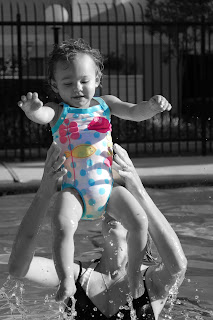
The first photo I like to refer to as "peek-a-boo" color. Start with a colored photo. The easiest way to do this is to use the selection brush and paint over the section you want to keep colored. (Be sure to magnify your image, so you can paint as close to the edges as possible to get every pixel). Then, inverse your selction, so the background is now selected. Then, choose 'convert to black and white'. Only your selected area will become black and white. It's that easy.
_edited-2.jpg)
The first photo I like to refer to as "peek-a-boo" color. Start with a colored photo. The easiest way to do this is to use the selection brush and paint over the section you want to keep colored. (Be sure to magnify your image, so you can paint as close to the edges as possible to get every pixel). Then, inverse your selction, so the background is now selected. Then, choose 'convert to black and white'. Only your selected area will become black and white. It's that easy._edited-2.jpg)
The second photo is called "hand tinting". First you want to make your entire picture black and white. Select the brush tool (not the selection brush tool, just the brush tool). Choose a brush with soft edges and choose a foreground color. In this picture, I chose the color pink and painted on top of the B&W dress ( I set the opacity to 50%. Had I left it at 100% it would have been to opaque and dark, and you wouldn't be able to see the polka dots as well) I painted over the bunny with brown at 50% opacity and yellow on the duck at 50% opacity.
If you haven't read my blog, then you should know that I am using Photoshop Elements software to do this.
Here are some really good tips. Always make a duplicate of your photo and then photoshop the duplicate image. That way you can always preserve the original. Or................When you open up the original image, add an adjustment layer to it. You can photoshop the adjustment layer rather than the image itself.
Monday, February 23, 2009
Easy Text Effects
When you experiment with Photoshop enough, you can learn how to grundge or distress edges. You can even learn how to make torn paper. If you are a scrapbooker, just think, anything you can do with tangible scrapbook supplies, you can do with digital scrapbook supplies. The easiest way to get these effects is to purchase actions (.ATN files) which will do all the steps for you with one press of a button.
like chipped paint------
Get the look of torn paper.
My favorites is the chipboard effect and inked edges. Go to Atomic Cupcake.com and you can purchase or download some of their free actions. They also have a section that gives great PS Tutorials for beginners. Check them out.
To learn how to install actions, see the below link.
Tuesday, February 17, 2009
Photography into Art and Wallpaper
If you are an HGTV junkie like me, you see that a lot of designers will use photography as art for the wall. Check out http://www.betterwallpaper.co.uk/default.aspx. You can send them a photo and they will turn it into wallpaper. Since my house isn't huge, I had Ritz camera enlarge a photo into a 20 x 26, changed it to sepia and photoshopped a little border. Put it in a frame and hung it over my mantle.
.JPG)
Monday, February 9, 2009
Spell with Flickr
This is so cool. Go to http://metaatem.net/words/ and you can type in any word and it will pull up photos of letters to spell the word you chose. If you have ever seen those really expensive framed pictures that take your last name with cool letter photos like these and then they matte it into a frame and sell it for like $50++++++++.
Now all you have to do is choose your word, right click on each letter and save it. Upload it to your favorite photo developer and frame it yourself. Tip: on the "spell with flickr" website if you left click on the letters, it will give you several different photos to choose from for each letter.Tuesday, January 27, 2009
actions into action
Here is a before and after of some pics in Malibu. The first I used an action by "night light"(set 66). To better explain. To give a picture this type of effect you would have to perform several steps with different tools (in other words there are different layers that have been added to the original background from contrast, lighting, color, opacity, blurs and other filters. An action is when somebody creats an .ATN file that puts all the steps in order. Once you download the action or .ATN file, you just have to click one button and it performs all the steps really fast for you. The only other thing I did,was I added a linear gradient using the colore black and directed it from each corner to her face. That is why the edges are darker (burned) and it gradually gets lighter in the center.

This second photo has been cropped, partially blurred with two different actions applied including "night light" (set 67). I then made a masked selection around Kennedee with a soft brush and increased the brightness and then used the burn and dodge tools for final touches.


This second photo has been cropped, partially blurred with two different actions applied including "night light" (set 67). I then made a masked selection around Kennedee with a soft brush and increased the brightness and then used the burn and dodge tools for final touches.

Subscribe to:
Comments (Atom)